


Keeping hackers out of a WordPress site
Written by: Shaan Nicol
Last updated: Nov 28, 2026 · 7 min

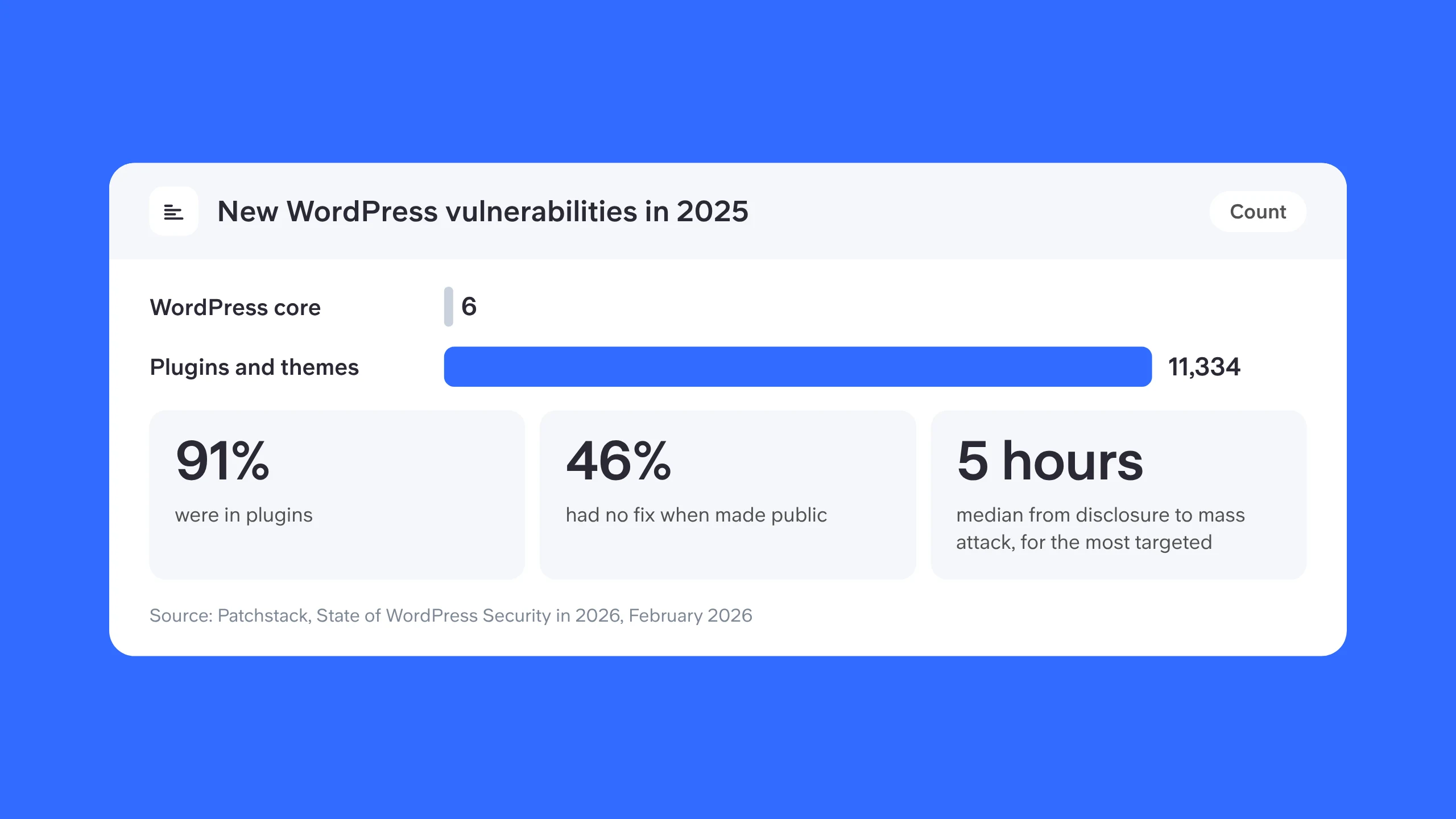
Update plugins within a day of a security fix, and give everyone who edits the site their own login with two-factor turned on. Start with plugins: 91% of the 11,334 new WordPress vulnerabilities found in 2025 were in plugins (Patchstack, February 2026). Then remove what the site doesn’t use, and keep backups off the server that you’ve tested by restoring one.
Table of Contents
Is WordPress itself safe from hackers?
Yes, if it’s kept up to date. Patchstack found six vulnerabilities in WordPress core in 2025, all low priority, against 11,334 in plugins and themes (State of WordPress Security in 2026, 25 February 2026). The risk sits in what gets added to WordPress, where it’s hosted and who can log in.
Where do WordPress sites get broken into?
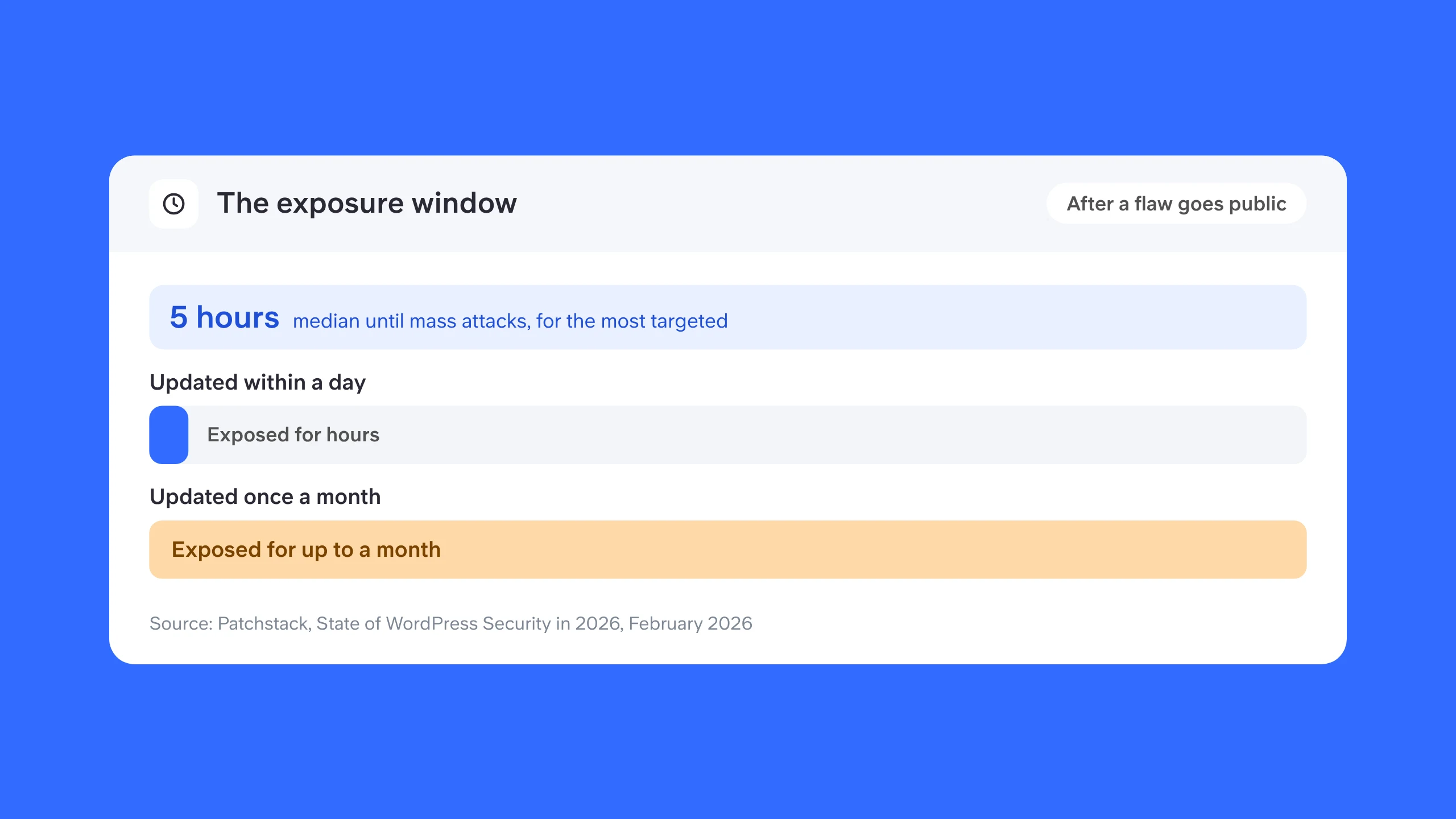
Plugins are the main way in. Patchstack’s 2025 total was 42% higher than in 2024. 46% of the flaws had no fix from the developer when they were made public. For the most heavily targeted, the median time from disclosure to mass attack was five hours.
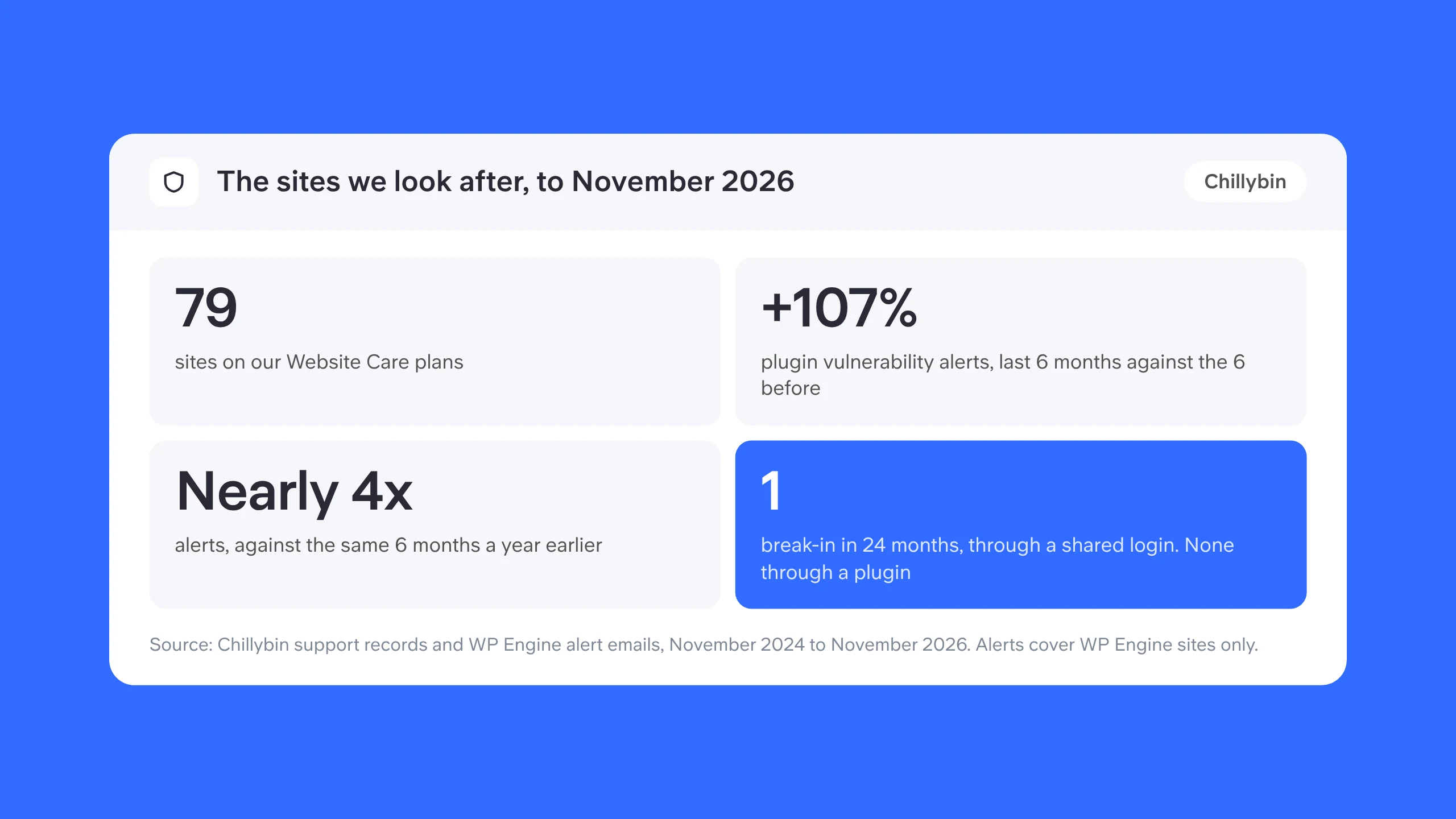
We see the same rise on the sites we look after. The plugin vulnerability alerts WP Engine sends us more than doubled in the six months to November 2026 (up 107% on the six months before) and are nearly four times what they were a year earlier. Each alert is one plugin on one hosting account, so it counts flaws to fix, not hacked sites.
People are the second way in, and in our case the only one. The one site we’ve had to clean up in the last two years was broken into through a login, not a plugin. In October 2026 an attacker signed in to a Singapore client’s site with the shared administrator login its SEO agency used. The password worked first time, and our logs showed around 400 failed guesses against that username since December 2024. The whole attack took 30 seconds. It installed a fake caching plugin, created a hidden administrator account and added a script to every page. The malware hid itself from the plugin and user screens, which is why it ran for 22 days before we found it. We removed it, reset every password, made two-factor login compulsory and switched off file editing inside WordPress, which on its own would have blocked the theme change. The site had 16 administrator accounts. We recommend three or four, each a named person, never a shared agency login.
How quickly do security updates need to go on?
Within a day. If attacks start within hours of a flaw going public, a site updated once a month can sit exposed for up to a month.
If nobody checks your site daily, switch on automatic updates. WordPress has an “Enable auto-updates” link beside each plugin on the Plugins screen. Keep a daily backup in case an update breaks something. Keep WordPress itself and your theme current the same way.
On the sites on our WordPress maintenance plans, we check for security fixes every day. Routine updates are tested on a staging copy first, a private duplicate of the site, so a broken update never reaches the live pages.
Some flaws have no fix to install yet. Then the plugin comes off until there is one, or the attack is blocked by a firewall (a filter that sits in front of the site), or we patch it by hand.
Other fixes sit below WordPress. In October 2026 two critical PHP flaws were published (CVE-2026-109618 and CVE-2026-109619). When a client asked whether their site was exposed, we checked the same day: it was already on PHP 8.2.35, which includes the fix. In November we patched the servers we manage for NGINX2Root, five flaws in the Nginx web server made public on 18 November, and applied the PHP updates released on 19 November.
| The sites we look after, to November 2026 | |
|---|---|
| Sites on our Website Care plans | 97 |
| Plugin vulnerability alerts, last six months | Up 107% on the six months before |
| Alerts, against the same six months a year earlier | Nearly four times as many |
| Plugins with the most alerts | Forminator, Elementor, Gravity Forms, Ninja Forms, WooCommerce |
| Sites broken into, last 24 months | 1, through a shared login (none through a plugin) |
Source: Chillybin support records and WP Engine alert emails, November 2024 to November 2026. Alert figures cover sites hosted on WP Engine.
How do you lock down logins?
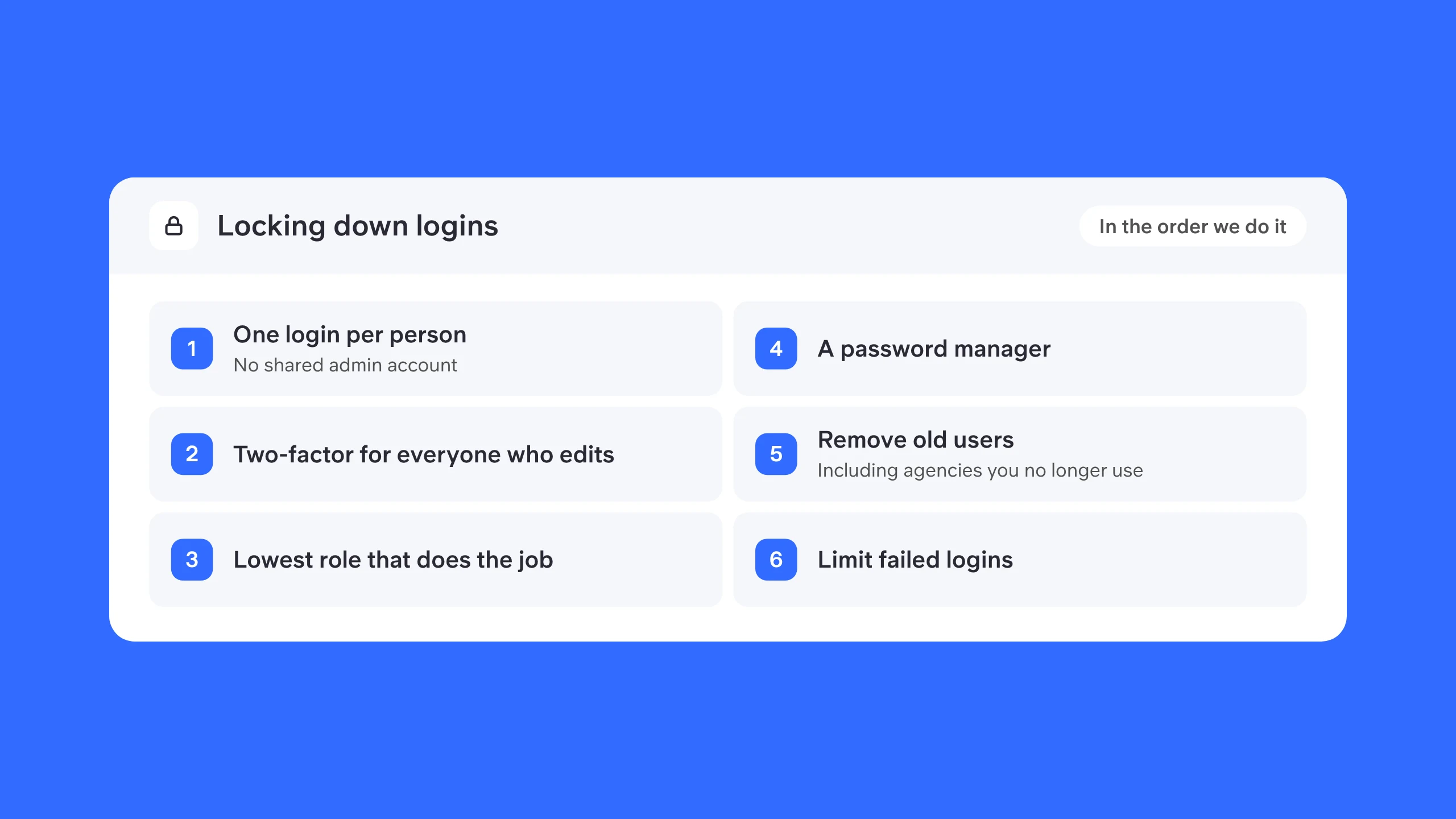
Six jobs, in the order we’d do them on a site we’d just taken over.
- One login per person. Nobody shares the main administrator account. You should be able to switch off anyone’s access in seconds.
- Two-factor login for everyone who edits the site. That’s a code from a phone app on top of the password, so a stolen password can’t get in by itself.
- The lowest role that does the job. Someone who writes posts needs Editor. Few people need Administrator.
- A password manager. 1Password and Bitwarden both work. Nobody emails a password.
- Remove old users. Former staff, former agencies, one-off freelancers. The shared login in the October case should have been removed months earlier.
- Limit failed logins. A security plugin such as Wordfence blocks repeated failures from the same source.
Moving the login page off its default address cuts the noise from bots. Do it last, because it stops none of the attacks above.
What should you switch off or remove?
Delete plugins and themes you don’t use. A deactivated plugin’s code is still on the server and can still be attacked. Before adding a new one, check its “Last updated” date on WordPress.org. Never install a paid plugin from a free download site, because those copies often carry malware.
Switch off the built-in theme and plugin editor. It’s one line in wp-config.php, the site’s settings file (DISALLOW_FILE_EDIT). It closes one route for anyone with a stolen login: editing code straight from the dashboard.
Look for plugins that shouldn’t be there at all. On one neglected site we took over this year, a file manager plugin let anyone with a login browse and change the server’s files. The security scanner had been switched off. The page builder’s licence had lapsed, so it no longer received fixes. The file manager came off first.
What to ask your host for
| What | Why | Who usually does it |
|---|---|---|
| A supported version of PHP, the language WordPress runs on | Old versions stop getting security fixes. PHP 8.2 gets them until 31 December 2026 (php.net), so ask for 8.3 or newer | Your host, if you ask |
| Server logins by key file (SSH key), with passwords switched off | No password to guess | Whoever manages the server |
| A firewall | Blocks known attacks before they reach WordPress | Host, or a service such as Cloudflare |
| Daily backups stored off the server | A backup on the same server disappears with it | Host or your maintenance plan |
| A test restore each quarter | Proves the backup works | Whoever looks after the site |
Ask your host which PHP version the site runs on, because some leave the upgrade to you. In 2025 we checked a B2B software company’s site still running WordPress 5.7 on a PHP version that had been out of support since December 2019, with 10 plugins carrying known vulnerabilities.
Every server we manage is set up this way. Most of the list came from the yearly security tests our institutional clients commission, and from fixing what those tests found. The maintenance checklist lists these jobs by how often they need doing.
Is a security plugin enough?
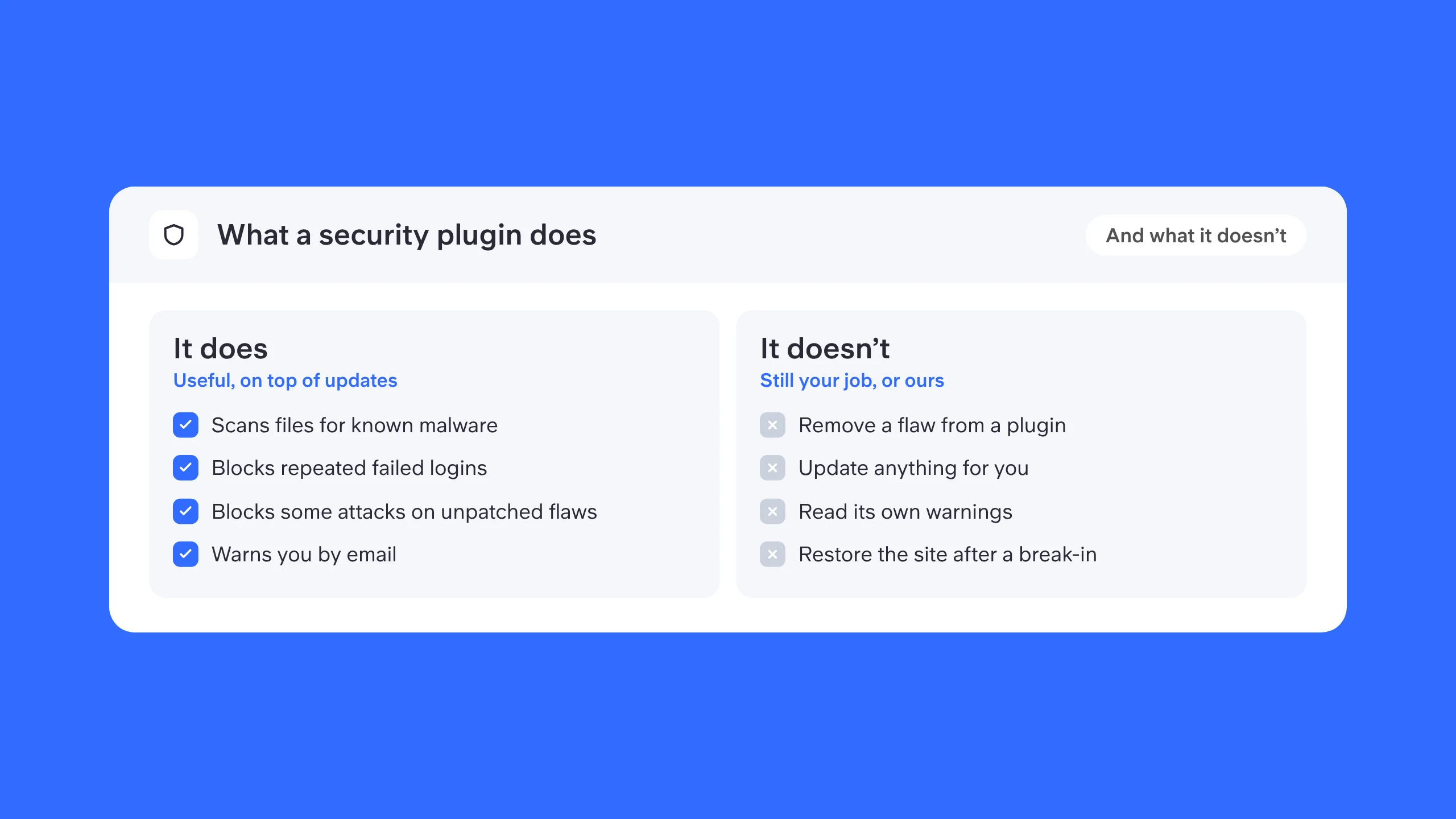
It helps, and it still needs a person. Wordfence or Solid Security will scan the site, block repeated logins and warn you. Their firewall can block some attacks on a flaw that has no patch yet. The flaw is still there until the plugin is fixed or removed, and someone has to read the warnings.
What if the site has already been hacked?
Signs include pages redirecting somewhere you didn’t send them, admin users you don’t recognise, spam pages in Google’s results for your domain, or a warning from your host.
Don’t start deleting files. Take a copy of the site as it is, then find how they got in before you restore a clean backup, or the same gap reopens. Reset every password and switch on two-factor login. Our guide to what to do if your site is hacked goes through it step by step.

Written by
Shaan Nicol
Shaan founded Chillybin and runs it from Brisbane and Singapore, where he lived for 25 years. He led WordCamp Singapore 2019, co-organises the WordPress Singapore Meetup, and was Online Manager at EMI Music.
View all posts